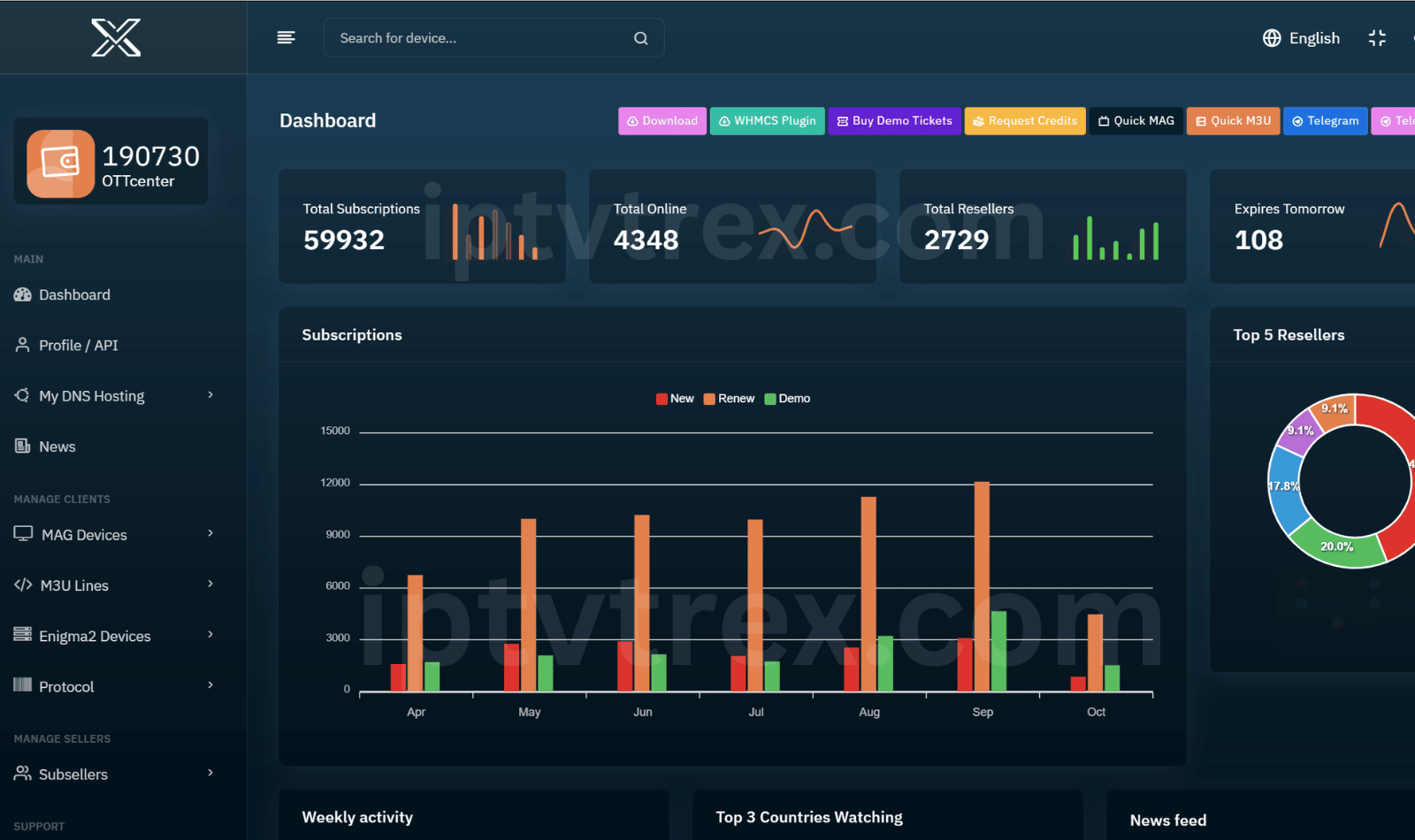
Trex IPTV is more than a large IPTV server. It combines a massive content library, professional stability, free apps for supported devices, and a dedicated team working every day to keep the service updated and reliable.
Massive library, maintained every day.
A large selection of live TV, movies, and series, backed by a team that adds new content, updates movies and shows, and fixes channel issues daily.
99.99% stability with free apps.
Trex IPTV is built for professional stability and includes free app options for supported devices, helping your customers get started without unnecessary extra costs.
ActivationPanel.net control and API access.
Manage your Trex IPTV business from the activation panel, use API options, and organize template groups and bouquets in the order that works best for your customers.
The reseller advantage
A strong product is easier to sell. When trial customers experience rich content, stable playback, and a polished service, it becomes easier to turn interest into a paid subscription.
Trex IPTV apps
One service. Apps for every screen.
Trex IPTV works across the devices your customers already use, with dedicated app options for smart TVs, mobile, desktop, Fire TV, and STB setups.
Download Apps →Multiple setup options, one Trex IPTV ecosystem.
Smart TV
Samsung
Smart TV
LG
Mobile / TV
Android
Mobile / TV
Apple
Streaming
Fire TV
Desktop
Windows
Desktop
macOS
Advanced
MAG / STB
Latest guides for Trex IPTV resellers
Discover practical reseller tips, service setup advice and helpful guides. Explore all articles or read our two latest posts.
[{"id":3,"b_title":"How to Generate a Trex IPTV M3U from Activation Panel: 4 Reseller Tips","slug":"generate-trex-iptv-m3u-activation-panel","lang":"en","description":"<p>Creating an M3U playlist is more than clicking Generate. From my experience working with customers, small decisions about channel order, customer notes, service testing and follow-up can make the difference between a confusing trial and a professional service.<\/p><h2>1. Put your customer's country categories at the top<\/h2><p>When you generate a playlist in Activation Panel, start with the country your customer actually watches. If your customer is from the US, put the US channels first. If your customer is in the UK, bring the UK categories to the top. Do the same for customers in other countries and consider their preferred language.<\/p><p>They should not have to scroll through dozens of unrelated categories to find the channels they came for. A familiar, well-organized list makes the first experience easier and gives customers a stronger reason to recommend you.<\/p><ul><li>Ask the customer where they will watch and which categories they prefer.<\/li><li>Move the matching country categories to the top before generating the M3U.<\/li><li>Open the playlist yourself to verify the order of categories.<\/li><\/ul><h2>2. Add useful notes without exposing customer information<\/h2><p>Always add a short note to each subscription so you can identify the customer and remember important details. But don't paste full phone numbers, full email addresses or passwords into a subscription note.<\/p><p>For example, if the project contact number is <strong>212661958043<\/strong>, a masked note can look like <strong>212661****43<\/strong>. You can also use a reference such as <strong>US-014 · Trial · Follow up Friday<\/strong>. The goal is to recognize the account without showing the complete customer record. Masking is not the same as secure hashing, so keep full customer contact information only in an appropriately protected system.<\/p><h2>3. Test M3U, Xtream and EPG before sharing a trial<\/h2><p>Before you send an M3U to a customer, verify that the server address (DNS) works, the playlist opens in a compatible player, and a sample channel plays. Check the expiration date and connection limit too.<\/p><p>Use the <a href=\"\/convert\">Trex IPTV Convert tool<\/a> when you want to examine converted Xtream details and the EPG\/XMLTV URL. After conversion, confirm that the resulting connection information actually works: a successful conversion alone does not guarantee playback.<\/p><ul><li>Check that the DNS\/server address responds.<\/li><li>Verify the Xtream username and password if the connection uses them.<\/li><li>Check EPG availability and the subscription expiration date.<\/li><\/ul><h2>4. Follow up and offer setup help<\/h2><p>After the customer tests the playlist, send one friendly follow-up. Ask whether the list opened, whether they found their preferred categories and whether they need help installing or setting up their player. If something didn't work, ask why and help troubleshoot before discussing another order.<\/p><blockquote><p>Hi! Were you able to open your trial? Could you find your country channels easily? Tell me which device or app you're using if you'd like help with setup.<\/p><\/blockquote><h2>Quick checklist before delivery<\/h2><ul><li>Customer's country categories come first.<\/li><li>The subscription note identifies the account without exposing customer data.<\/li><li>M3U, DNS, Xtream and EPG have been checked.<\/li><li>Expiration and connection limits match the order.<\/li><li>A helpful follow-up is planned.<\/li><\/ul><p>For a final connection check, open <a href=\"\/convert\">Convert<\/a>. To review your own orders, visit <a href=\"\/myorders\">My Orders<\/a>.<\/p>","b_img":"https:\/\/iptvtrex.com\/assets\/images\/blogs\/how-to-generate-a-trex-iptv-m3u-from-activation-panel-4-reseller-tips-b-img.png","b_status":"Valid","b_date":"2026-10-13","b_creator":"Trex IPTV","seo_description":"Practical Trex IPTV reseller tips for generating M3U playlists: prioritize country categories, protect customer notes, check Xtream and EPG, and follow up.","path":"generate-trex-iptv-m3u-activation-panel","description_html":"<p>Creating an M3U playlist is more than clicking Generate. From my experience working with customers, small decisions about channel order, customer notes, service testing and follow-up can make the difference between a confusing trial and a professional service.<\/p><h2>1. Put your customer's country categories at the top<\/h2><p>When you generate a playlist in Activation Panel, start with the country your customer actually watches. If your customer is from the US, put the US channels first. If your customer is in the UK, bring the UK categories to the top. Do the same for customers in other countries and consider their preferred language.<\/p><p>They should not have to scroll through dozens of unrelated categories to find the channels they came for. A familiar, well-organized list makes the first experience easier and gives customers a stronger reason to recommend you.<\/p><ul><li>Ask the customer where they will watch and which categories they prefer.<\/li><li>Move the matching country categories to the top before generating the M3U.<\/li><li>Open the playlist yourself to verify the order of categories.<\/li><\/ul><h2>2. Add useful notes without exposing customer information<\/h2><p>Always add a short note to each subscription so you can identify the customer and remember important details. But don't paste full phone numbers, full email addresses or passwords into a subscription note.<\/p><p>For example, if the project contact number is <strong>212661958043<\/strong>, a masked note can look like <strong>212661****43<\/strong>. You can also use a reference such as <strong>US-014 · Trial · Follow up Friday<\/strong>. The goal is to recognize the account without showing the complete customer record. Masking is not the same as secure hashing, so keep full customer contact information only in an appropriately protected system.<\/p><h2>3. Test M3U, Xtream and EPG before sharing a trial<\/h2><p>Before you send an M3U to a customer, verify that the server address (DNS) works, the playlist opens in a compatible player, and a sample channel plays. Check the expiration date and connection limit too.<\/p><p>Use the <a href=\"\/convert\">Trex IPTV Convert tool<\/a> when you want to examine converted Xtream details and the EPG\/XMLTV URL. After conversion, confirm that the resulting connection information actually works: a successful conversion alone does not guarantee playback.<\/p><ul><li>Check that the DNS\/server address responds.<\/li><li>Verify the Xtream username and password if the connection uses them.<\/li><li>Check EPG availability and the subscription expiration date.<\/li><\/ul><h2>4. Follow up and offer setup help<\/h2><p>After the customer tests the playlist, send one friendly follow-up. Ask whether the list opened, whether they found their preferred categories and whether they need help installing or setting up their player. If something didn't work, ask why and help troubleshoot before discussing another order.<\/p><blockquote><p>Hi! Were you able to open your trial? Could you find your country channels easily? Tell me which device or app you're using if you'd like help with setup.<\/p><\/blockquote><h2>Quick checklist before delivery<\/h2><ul><li>Customer's country categories come first.<\/li><li>The subscription note identifies the account without exposing customer data.<\/li><li>M3U, DNS, Xtream and EPG have been checked.<\/li><li>Expiration and connection limits match the order.<\/li><li>A helpful follow-up is planned.<\/li><\/ul><p>For a final connection check, open <a href=\"\/convert\">Convert<\/a>. To review your own orders, visit <a href=\"\/myorders\">My Orders<\/a>.<\/p>","description_text":"Creating an M3U playlist is more than clicking Generate. From my experience working with customers, small decisions about channel order, customer notes, service testing and follow-up can make the difference between a confusing trial and a professional service. 1. Put your customer's country categories at the top When you generate a playlist in Activation Panel, start with the country your customer actually watches. If your customer is from the US, put the US channels first. If your customer is in the UK, bring the UK categories to the top. Do the same for customers in other countries and consider their preferred language. They should not have to scroll through dozens of unrelated categories to find the channels they came for. A familiar, well-organized list makes the first experience easier and gives customers a stronger reason to recommend you. Ask the customer where they will watch and which categories they prefer. Move the matching country categories to the top before generating the M3U. Open the playlist yourself to verify the order of categories. 2. Add useful notes without exposing customer information Always add a short note to each subscription so you can identify the customer and remember important details. But don't paste full phone numbers, full email addresses or passwords into a subscription note. For example, if the project contact number is 212661958043, a masked note can look like 212661****43. You can also use a reference such as US-014 · Trial · Follow up Friday. The goal is to recognize the account without showing the complete customer record. Masking is not the same as secure hashing, so keep full customer contact information only in an appropriately protected system. 3. Test M3U, Xtream and EPG before sharing a trial Before you send an M3U to a customer, verify that the server address (DNS) works, the playlist opens in a compatible player, and a sample channel plays. Check the expiration date and connection limit too. Use the Trex IPTV Convert tool when you want to examine converted Xtream details and the EPG\/XMLTV URL. After conversion, confirm that the resulting connection information actually works: a successful conversion alone does not guarantee playback. Check that the DNS\/server address responds. Verify the Xtream username and password if the connection uses them. Check EPG availability and the subscription expiration date. 4. Follow up and offer setup help After the customer tests the playlist, send one friendly follow-up. Ask whether the list opened, whether they found their preferred categories and whether they need help installing or setting up their player. If something didn't work, ask why and help troubleshoot before discussing another order. Hi! Were you able to open your trial? Could you find your country channels easily? Tell me which device or app you're using if you'd like help with setup. Quick checklist before delivery Customer's country categories come first. The subscription note identifies the account without exposing customer data. M3U, DNS, Xtream and EPG have been checked. Expiration and connection limits match the order. A helpful follow-up is planned. For a final connection check, open Convert. To review your own orders, visit My Orders.","excerpt":"Creating an M3U playlist is more than clicking Generate. From my experience working with customers, small decisions about channel order, customer notes, service testing and follow-up can make the difference between a confusing trial and a professional service. 1. Put your customer's country categories at the top When you generate a playlist in Activation Panel, start with the country your customer actually watches. If your customer is from the US, put the US channels first. If your customer is in the UK, bring the UK categories to the top. Do the same for customers in other countries and consider their preferred language. They should not have to scroll through dozens of unrelated categories to find the channels they came for. A familiar, well-organized list makes the first experience easier and gives customers a stronger reason to recommend you. Ask the customer where they will watch and which categories they prefer. Move the matching country categories to the top before generating the M3U. Open the playlist yourself to verify the order of categories. 2. Add useful notes without exposing customer information Always add a short note to each subscription so you can identify the customer and remember important details. But don't paste full phone numbers, full email addresses or passwords into a subscription note. For example, if the project contact number is 212661958043, a masked note can look like 212661****43. You can also use a reference such as US-014 · Trial · Follow up Friday. The goal is to recognize the account without showing the complete customer record. Masking is not the same as secure hashing, so keep full customer contact information only in an appropriately protected system. 3. Test M3U, Xtream and EPG before sharing a trial Before you send an M3U to a customer, verify that the server address (DNS) works, the playlist opens in a compatible player, and a sample channel plays. Check the expiration date and connection limit too. Use the Trex IPTV Convert tool when you want to examine converted Xtream details and the EPG\/XMLTV URL. After conversion, confirm that the resulting connection information actually works: a successful conversion alone does not guarantee playback. Check that the DNS\/server address responds. Verify the Xtream username and password if the connection uses them. Check EPG availability and the subscription expiration date. 4. Follow up and offer setup help After the customer tests the playlist, send one friendly follow-up. Ask whether the list opened, whether they found their preferred categories and whether they need help installing or setting up their player. If something didn't work, ask why and help troubleshoot before discussing another order. Hi! Were you able to open your trial? Could you find your country channels easily? Tell me which device or app you're using if you'd like help with setup. Quick checklist before delivery Customer's country categories come first. The subscription note identifies the account without exposing customer data. M3U, DNS, Xtream and EPG have been checked. Expiration and connection limits match the order. A helpful follow-up is planned. For a final connection check, open Convert. To review your own orders, visit My Orders.","media_gallery":[{"type":"image","url":"https:\/\/iptvtrex.com\/assets\/images\/blogs\/how-to-generate-a-trex-iptv-m3u-from-activation-panel-4-reseller-tips-b-img.png","primary":true}]},{"id":2,"b_title":"Reseller Dashboard Guide: Track Orders and Charge Credits","slug":"reseller-dashboard-orders-credits-guide","lang":"en","description":"<p>Managing customer orders is easier when payment status, delivery information, and reseller credit activity are organized in one place. This quick guide explains the main tools available in the Trex IPTV reseller experience.<\/p><h2>1. Check your orders<\/h2><p>Sign in to your account and open <a href=\"\/myorders\">My Orders<\/a>. The compact order list helps you review recent orders, their quantities, and their current status. Use the search field to find an order by number.<\/p><h2>2. Open service details<\/h2><p>Select <strong>Details<\/strong> on an order to view the information that has been delivered for it. Depending on the order, this may include panel information, service login details, expiration information, or connection limits. Data is shown only when it is available for that order.<\/p><h2>3. Order additional reseller credits<\/h2><p>Need more stock for your reseller panel? Choose <a href=\"\/checkout\/credits\/others\/60\">Charge Credits<\/a> to start a <strong>new order<\/strong>. Enter the credit quantity and your panel username if needed, then review the order summary before continuing to the invoice.<\/p><h2>4. Complete pending payments<\/h2><p>If a new order is waiting for payment, follow the instructions shown on its invoice. Select a payment method and, when requested, upload a clear screenshot or receipt so the payment can be reviewed.<\/p><h2>5. Keep your service details secure<\/h2><p>Only share service usernames and passwords with the intended account holder. For questions about an existing order, use the support contact options provided on the invoice.<\/p><p><a href=\"\/myorders\">View My Orders<\/a> or <a href=\"\/checkout\/credits\/others\/60\">start a new credit order<\/a>.<\/p>","b_img":"https:\/\/iptvtrex.com\/assets\/images\/trex-iptv-panel-screenshot.png","b_status":"Valid","b_date":"2026-10-12","b_creator":"Trex IPTV","seo_description":"Learn how to track Trex IPTV reseller orders, view delivered service details, and place a new reseller credit order from your account.","path":"reseller-dashboard-orders-credits-guide","description_html":"<p>Managing customer orders is easier when payment status, delivery information, and reseller credit activity are organized in one place. This quick guide explains the main tools available in the Trex IPTV reseller experience.<\/p><h2>1. Check your orders<\/h2><p>Sign in to your account and open <a href=\"\/myorders\">My Orders<\/a>. The compact order list helps you review recent orders, their quantities, and their current status. Use the search field to find an order by number.<\/p><h2>2. Open service details<\/h2><p>Select <strong>Details<\/strong> on an order to view the information that has been delivered for it. Depending on the order, this may include panel information, service login details, expiration information, or connection limits. Data is shown only when it is available for that order.<\/p><h2>3. Order additional reseller credits<\/h2><p>Need more stock for your reseller panel? Choose <a href=\"\/checkout\/credits\/others\/60\">Charge Credits<\/a> to start a <strong>new order<\/strong>. Enter the credit quantity and your panel username if needed, then review the order summary before continuing to the invoice.<\/p><h2>4. Complete pending payments<\/h2><p>If a new order is waiting for payment, follow the instructions shown on its invoice. Select a payment method and, when requested, upload a clear screenshot or receipt so the payment can be reviewed.<\/p><h2>5. Keep your service details secure<\/h2><p>Only share service usernames and passwords with the intended account holder. For questions about an existing order, use the support contact options provided on the invoice.<\/p><p><a href=\"\/myorders\">View My Orders<\/a> or <a href=\"\/checkout\/credits\/others\/60\">start a new credit order<\/a>.<\/p>","description_text":"Managing customer orders is easier when payment status, delivery information, and reseller credit activity are organized in one place. This quick guide explains the main tools available in the Trex IPTV reseller experience. 1. Check your orders Sign in to your account and open My Orders. The compact order list helps you review recent orders, their quantities, and their current status. Use the search field to find an order by number. 2. Open service details Select Details on an order to view the information that has been delivered for it. Depending on the order, this may include panel information, service login details, expiration information, or connection limits. Data is shown only when it is available for that order. 3. Order additional reseller credits Need more stock for your reseller panel? Choose Charge Credits to start a new order. Enter the credit quantity and your panel username if needed, then review the order summary before continuing to the invoice. 4. Complete pending payments If a new order is waiting for payment, follow the instructions shown on its invoice. Select a payment method and, when requested, upload a clear screenshot or receipt so the payment can be reviewed. 5. Keep your service details secure Only share service usernames and passwords with the intended account holder. For questions about an existing order, use the support contact options provided on the invoice. View My Orders or start a new credit order.","excerpt":"Managing customer orders is easier when payment status, delivery information, and reseller credit activity are organized in one place. This quick guide explains the main tools available in the Trex IPTV reseller experience. 1. Check your orders Sign in to your account and open My Orders. The compact order list helps you review recent orders, their quantities, and their current status. Use the search field to find an order by number. 2. Open service details Select Details on an order to view the information that has been delivered for it. Depending on the order, this may include panel information, service login details, expiration information, or connection limits. Data is shown only when it is available for that order. 3. Order additional reseller credits Need more stock for your reseller panel? Choose Charge Credits to start a new order. Enter the credit quantity and your panel username if needed, then review the order summary before continuing to the invoice. 4. Complete pending payments If a new order is waiting for payment, follow the instructions shown on its invoice. Select a payment method and, when requested, upload a clear screenshot or receipt so the payment can be reviewed. 5. Keep your service details secure Only share service usernames and passwords with the intended account holder. For questions about an existing order, use the support contact options provided on the invoice. View My Orders or start a new credit order.","media_gallery":[{"type":"image","url":"https:\/\/iptvtrex.com\/assets\/images\/trex-iptv-panel-screenshot.png","primary":true}]}]
Frequently asked questions
How can I become a Trex IPTV reseller?+
Start with the reseller credits checkout to place a new order, or use the free trial option to explore the service before purchasing.
Can I request a free trial?+
You can use the Start Free Trial option on the homepage and follow the checkout steps to create a trial request.
Where do I track my reseller orders?+
Sign in and open My Orders to review your order history, statuses and any delivered service details.
How can I check or format an M3U link?+
Open Reseller Tools then Convert to check a compatible M3U connection and copy a formatted customer message.
Can I connect my reseller panel to my website?+
The API guide explains documented Activation Panel operations and how to request assistance with a server-side integration.
[
{
"question": "How can I become a Trex IPTV reseller?",
"answer": "Start with the reseller credits checkout to place a new order, or use the free trial option to explore the service before purchasing."
},
{
"question": "Can I request a free trial?",
"answer": "You can use the Start Free Trial option on the homepage and follow the checkout steps to create a trial request."
},
{
"question": "Where do I track my reseller orders?",
"answer": "Sign in and open My Orders to review your order history, statuses and any delivered service details."
},
{
"question": "How can I check or format an M3U link?",
"answer": "Open Reseller Tools then Convert to check a compatible M3U connection and copy a formatted customer message."
},
{
"question": "Can I connect my reseller panel to my website?",
"answer": "The API guide explains documented Activation Panel operations and how to request assistance with a server-side integration."
}
]
T
Trex IPTV Support
Checking support...
Confirm your email
Confirm the email linked to this chat.
How can we help?
Ask about setup, apps, orders or your Trex IPTV account.
Replying
Account settings
Manage your Trex IPTV profile
Change password
Use 8–72 UTF-8 bytes. Your current password may be required.
Make order
Choose your product and plan.
We save this email to your current chat account and use it for your order.
Send this order or trial to a friend without changing your account email.
[
{
"question": "How can I become a Trex IPTV reseller?",
"answer": "Start with the reseller credits checkout to place a new order, or use the free trial option to explore the service before purchasing."
},
{
"question": "Can I request a free trial?",
"answer": "You can use the Start Free Trial option on the homepage and follow the checkout steps to create a trial request."
},
{
"question": "Where do I track my reseller orders?",
"answer": "Sign in and open My Orders to review your order history, statuses and any delivered service details."
},
{
"question": "How can I check or format an M3U link?",
"answer": "Open Reseller Tools then Convert to check a compatible M3U connection and copy a formatted customer message."
},
{
"question": "Can I connect my reseller panel to my website?",
"answer": "The API guide explains documented Activation Panel operations and how to request assistance with a server-side integration."
}
]